Connect LibreChat to Guard.ch
Let LibreChat open and use websites in a Guard.ch cloud browser. Watch live or hand over a running session.

Connect LibreChat
Use a current LibreChat instance that allows you to create MCP servers.
1. Add the connection
Open MCP Settings in the right sidebar and click +. Enter the name and URL, choose Streamable HTTPS and OAuth, tick the trust checkbox and click Create. No restart is needed.
Right sidebarMCP Settings+
Copy each value into the matching field.
- MCP server URL
https://api.guard.ch/mcp- Name
guardch- Description
Control an isolated Guard.ch session- Transport / connection type
- Streamable HTTPS
- Authentication
- OAuth
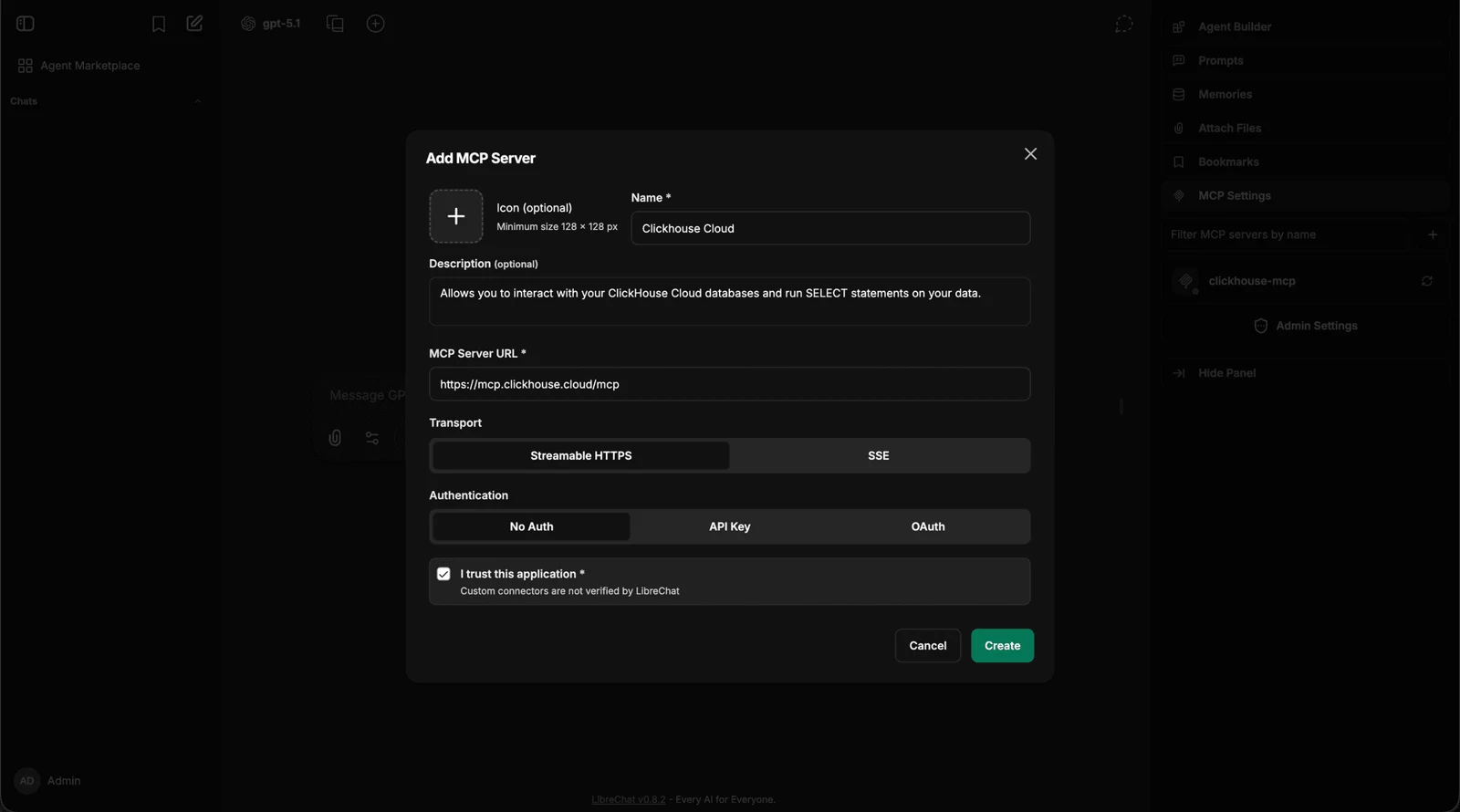
Official example. Use your values above; the example may show a different server or interface version. Screenshot source 2. Sign in and allow access
Select guardch in + › MCP Servers, then click Continue with OAuth. Sign in on Guard.ch and allow access.
Create+MCP ServersContinue with OAuth
3. Try it in a new chat
Check that guardch shows as connected and is selected in the MCP servers menu, then send the task below.
+MCP Servers
Open example.com in a Guard.ch browser and tell me what the page says.
Hand over a running session
Choose “Hand over to your agent” in the Guard.ch viewer and paste the prepared prompt into your assistant’s chat. The session ID in that prompt lets the assistant continue in the same browser. Sign your assistant in with the same Guard.ch account.