Connect Cursor to Guard.ch
Let Cursor open and use websites in a Guard.ch cloud browser. Watch live or hand over a running session.

Connect Cursor
Install Cursor and sign in to use Agent mode.
1. Add the connection
Put this configuration in ~/.cursor/mcp.json and save the file. If it already lists MCP servers, add only the guardch entry.
Cursor SettingsTools & MCP
or~/.cursor/mcp.json
Add the entry below. Keep any other servers already in the file.
{
  "mcpServers": {
    "guardch": {
      "url": "https://api.guard.ch/mcp"
    }
  }
}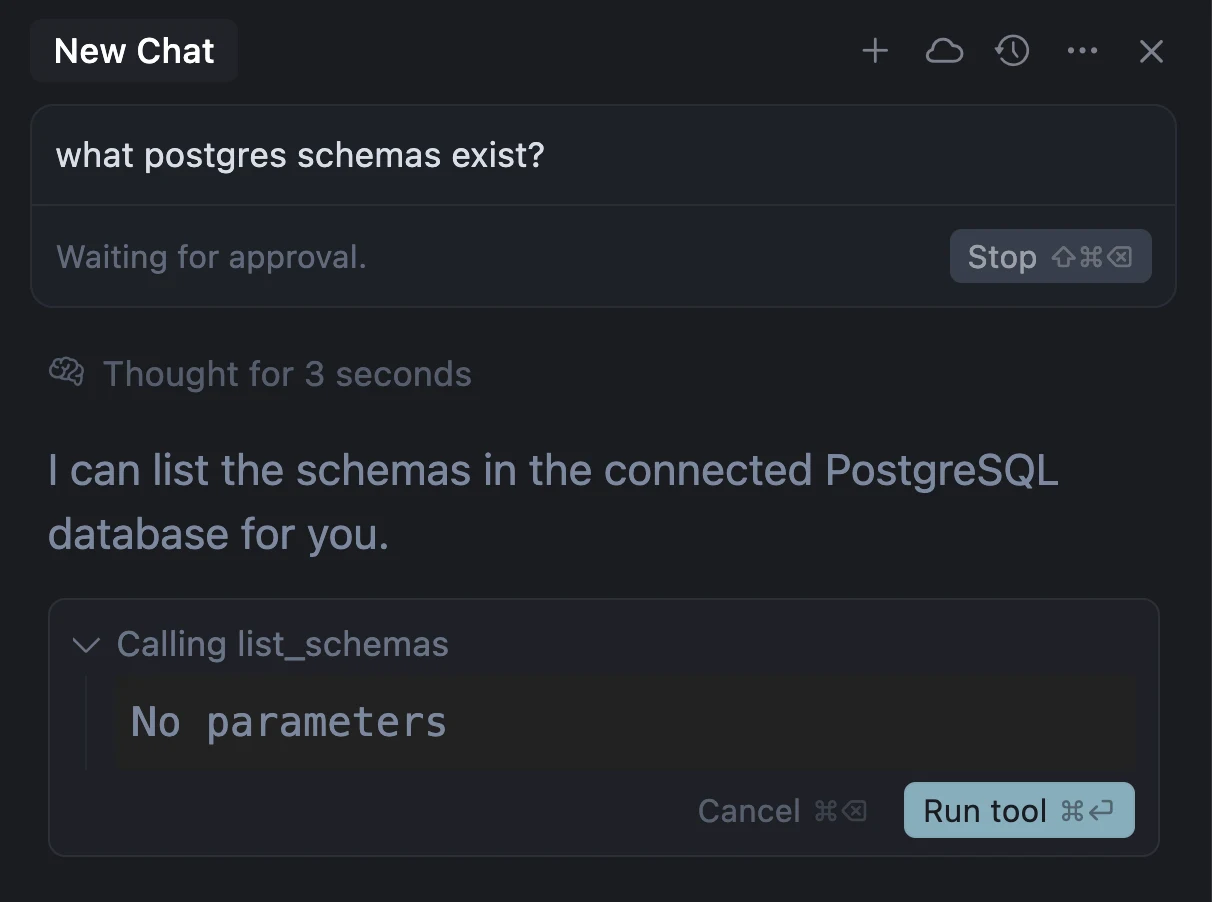
Official example. Use your values above; the example may show a different server or interface version. Screenshot source 2. Sign in and allow access
In Cursor, open Settings › Tools & MCP, click Connect next to guardch and sign in on the Guard.ch page that opens.
Connect
3. Try it in a new chat
Check that guardch is enabled in Tools & MCP. Open an Agent chat, send the task below and approve the browser tools when asked.
Agent
Open example.com in a Guard.ch browser and tell me what the page says.
Hand over a running session
Choose “Hand over to your agent” in the Guard.ch viewer and paste the prepared prompt into your assistant’s chat. The session ID in that prompt lets the assistant continue in the same browser. Sign your assistant in with the same Guard.ch account.